

22 Oct How to Update PHP Version on Your WordPress Site and Protect Your Business Website
How to Update PHP Version on Your WordPress Site is an important question for business owners who want to keep their websites secure, functional, and ready to support sales. PHP is the programming language that powers WordPress, and running an outdated version exposes your website to security risks, compatibility issues, and potential downtime.
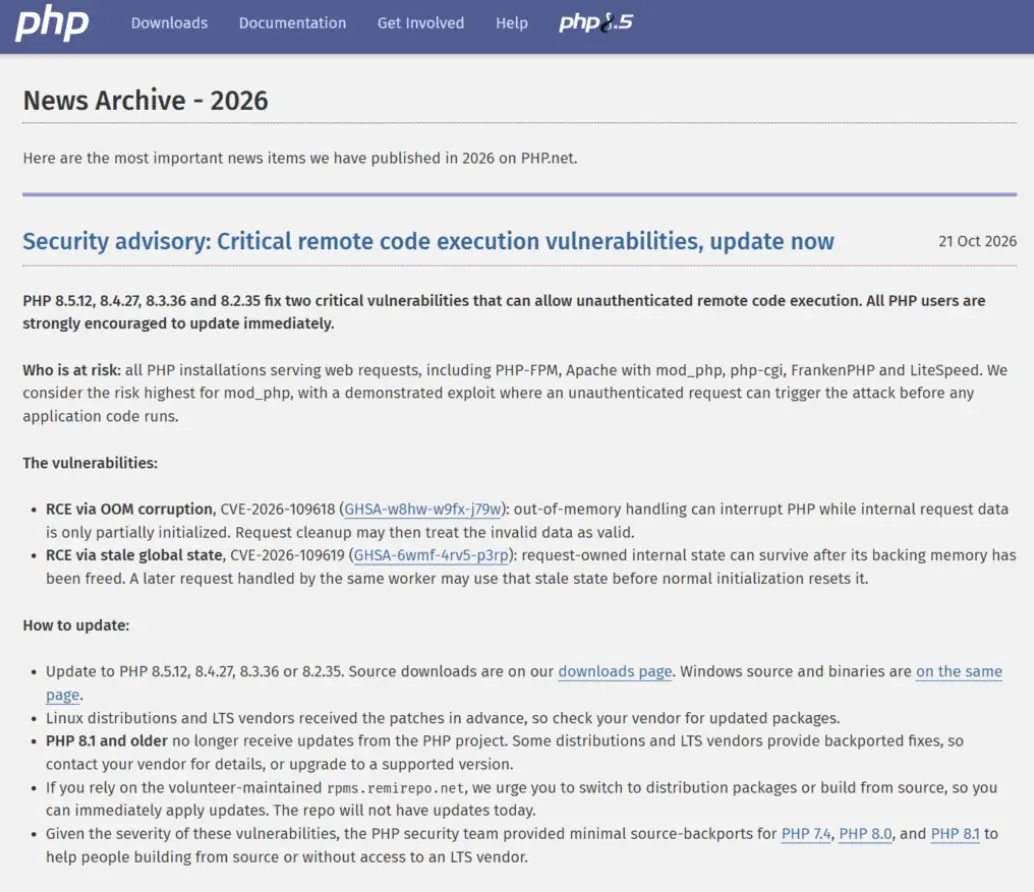
On October 21, 2026, the PHP development team released emergency security updates addressing two critical vulnerabilities that could allow attackers to execute malicious code on affected servers without logging in. The patched releases include PHP 8.5.12, 8.4.27, 8.3.36, and 8.2.35. The incident highlights why businesses need to monitor their website infrastructure and apply security updates promptly. Source: PHP official security advisory.
For business owners who manage their own WordPress websites, updating PHP is a practical maintenance task, provided the necessary precautions are taken. This guide explains how PHP affects your website, how to check your current version, and how to update PHP through your hosting account.
Why Is Updating PHP Important for Your Business Website?
PHP runs many of the processes behind your WordPress website, including loading pages, processing forms, managing user accounts, and supporting ecommerce functions.
Keeping PHP updated offers three important business benefits.
- Improved website security. Older PHP versions eventually stop receiving security fixes. When vulnerabilities remain unpatched, attackers have more opportunities to compromise your website, inject malicious code, redirect visitors, or access information handled by your website.
- Better website performance. Newer PHP versions often include performance improvements. Depending on your website, hosting environment, themes, and plugins, an upgrade might improve page loading and server responsiveness.
- Better software compatibility. WordPress, themes, and plugins evolve over time. Running a supported PHP version helps your website stay compatible with current software and reduces the risk associated with outdated components.
For businesses that rely on website inquiries, online sales, customer registrations, or appointment bookings, website maintenance directly affects business continuity. A compromised or malfunctioning website creates additional costs and risks losing customer trust.
What Happens If You Never Update PHP?
Neglecting PHP updates creates several potential problems.
- Security breaches. Attackers exploit known vulnerabilities to compromise vulnerable websites and servers.
- Website downtime. A security incident or software incompatibility might prevent pages, forms, or checkout functions from working.
- Lost leads and sales. Visitors who encounter errors or suspicious redirects are less likely to submit inquiries or complete purchases.
- Recovery expenses. Malware cleanup, website restoration, emergency developer work, and business interruption all consume time and money.
- Search visibility and reputation problems. A hacked website might display harmful content or trigger browser security warnings, discouraging visitors and affecting trust.
Updating PHP does not guarantee complete website security. WordPress core, themes, plugins, hosting configuration, access controls, and backups also require regular attention.
Before You Update PHP on WordPress
Changing PHP versions is usually handled through your hosting provider rather than the WordPress dashboard itself. Before making changes, prepare your website to reduce the risk of errors.
Complete these checks first.
- Back up your website. Create a full backup of your website files and database. Confirm the backup is accessible and that you know how to restore it.
- Update WordPress core. Install an appropriate current WordPress release after reviewing compatibility and testing requirements.
- Update themes and plugins. Check for available updates and confirm your essential plugins remain supported.
- Check PHP compatibility. Review your theme, plugins, custom code, and any integrations for compatibility with your intended PHP version.
- Identify critical website functions. List the pages and features your business depends on, such as contact forms, quotation requests, payment gateways, customer logins, and product checkout.
- Choose a suitable maintenance window. Schedule the change when traffic and order activity are relatively low, especially if your website supports ecommerce or lead generation.
If your website uses a custom theme, older plugins, or complex integrations, ask a developer to review compatibility before changing the PHP version.
How to Update PHP Version on Your WordPress Site, Step by Step
The exact process varies by hosting provider, but most websites follow the steps below.
Step 1. Check Your Current PHP Version
First, identify which PHP version your WordPress website currently uses.
- Log in to your WordPress admin dashboard.
- Go to Tools, then Site Health.
- Open the Info tab.
- Expand the Server section.
- Find the PHP version entry.
Record the version before proceeding. If your website runs an older release, check whether your hosting provider offers a supported, patched version suitable for your website.
Step 2. Log In to Your Hosting Control Panel
PHP is generally managed through your hosting account.
- Visit your hosting provider’s official website.
- Log in to your hosting dashboard.
- Open the control panel associated with your domain.
- Look for a setting named PHP Selector, PHP Manager, MultiPHP Manager, PHP Configuration, or a similar option.
The exact name depends on your hosting provider. If you cannot find the setting, contact your hosting support team and ask how to change the PHP version for your domain.
Step 3. Select the Appropriate PHP Version
Review the PHP versions available for your hosting account.
Choose a version that is supported by your hosting provider and compatible with your WordPress installation, theme, plugins, and custom code.
WordPress.org currently recommends PHP 8.3 or newer for hosting, but compatibility depends on the specific WordPress release and the other software running on your website. PHP 8.2 receives security updates through December 31, 2026, so businesses using PHP 8.2 should plan their next upgrade.
For the October 2026 vulnerabilities, the patched releases are PHP 8.5.12, 8.4.27, 8.3.36, and 8.2.35. These are specific security-fixed releases, not a blanket recommendation to select the newest major version without testing.
Avoid choosing a version solely because the number is higher. Confirm compatibility first.
Step 4. Apply the PHP Version Change
Once you have selected the appropriate version, follow your hosting provider’s instructions to apply the change.
- Select your domain or website.
- Choose the intended PHP version.
- Click Apply, Save, Update, or the equivalent control.
- Wait for the hosting platform to complete the change.
Some providers apply the change immediately, while others require a service restart or additional configuration.
If your website is hosted on a managed WordPress platform, PHP updates might be handled through a different dashboard or by the provider’s support team.
Step 5. Test Your Website Immediately
After updating PHP, open your website in a private browser window and check its essential functions.
- Visit the homepage and several important landing pages.
- Open your main service or product pages.
- Submit a contact form or quotation request using a test submission.
- Check navigation menus, images, and interactive elements.
- Test customer login, checkout, and payment functions if applicable.
- Log in to WordPress and confirm the dashboard works correctly.
- Review Site Health for newly reported issues.
Do not assume the update was successful simply because the homepage loads. Some compatibility problems affect only particular pages or functions.
Step 6. Check for Errors and Resolve Compatibility Issues
If your website displays a blank page, error message, missing content, or broken functionality, a theme or plugin might be incompatible with the selected PHP version.
Contact your hosting provider or developer to review server logs and identify the source of the problem. Avoid editing production code or disabling essential plugins without understanding the impact.
If a serious issue occurs, your developer or hosting provider should assess whether to restore the previous configuration temporarily, restore a clean backup, or apply a compatibility fix. Reverting to an older PHP version is not a safe long-term solution if the older version remains vulnerable.
Step 7. Confirm the Update and Document the Change
Once your website works as expected, return to Tools, then Site Health, and verify the PHP version.
Record the date of the update, the new PHP version, the backup location, and any issues resolved during testing. Keep this information with your website maintenance records.
This creates a useful history for future troubleshooting and helps your IT team plan subsequent updates.
How Often Should You Update PHP on WordPress?
Business owners should review PHP security and compatibility regularly rather than waiting for an error to appear.
A practical maintenance routine includes:
- Security updates. Review and apply relevant critical patches promptly, following compatibility checks and an appropriate deployment process.
- Monthly maintenance reviews. Check WordPress core, themes, plugins, backups, and available PHP updates.
- Periodic compatibility testing. Confirm that your website’s essential features continue to work as software changes.
- Ongoing security monitoring. Review suspicious activity, failed logins, malware alerts, and unexpected website changes.
- Regular recovery checks. Confirm that backups are available and that restoration procedures work.
Websites handling online payments, customer information, or a large volume of business inquiries benefit from a documented maintenance process with clear responsibilities and response times.
Is Updating PHP Enough to Keep Your WordPress Website Secure?
No. PHP updates address vulnerabilities in the PHP runtime, but they do not automatically fix every other security issue.
Your WordPress website also needs current plugins and themes, secure administrator accounts, reliable backups, appropriate server permissions, monitoring, and protection against malware. Any custom integrations should be reviewed as well.
For business owners, the goal is to maintain a website that supports business operations without creating unnecessary security risks or technical interruptions. PHP maintenance is one part of a broader website management plan.
Should You Update PHP Yourself or Hire a WordPress Expert?
If you have a simple WordPress website, a reliable backup, and a hosting account with straightforward PHP controls, the steps above offer a starting point for managing the update yourself.
The decision becomes more complicated when your website generates sales leads, processes online orders, connects to business systems, or depends on older plugins and custom development. A seemingly small version change might affect forms, checkout, integrations, or other revenue-generating features.
Business owners also need to consider the time required to research compatibility, create backups, perform the update, test every important function, investigate errors, and restore service if something goes wrong.
That time is often better spent improving customer relationships, developing new business, managing employees, and growing revenue.
Online Philippines helps businesses manage and maintain their websites, with technical support focused on website reliability, updates, security, and ongoing functionality. Rather than waiting for a website problem to interrupt your operations, work with a team that gives your website regular attention.
Visit Online Philippines to discuss website maintenance and technical support for your business.
If you are researching how to update PHP version on your WordPress site, remember that keeping your website updated is an ongoing responsibility. Let Online Philippines help manage the technical work while you focus on growing your business.
No Comments